emeetctlOpen source Linux control for the EMEET SmartCam S600L
Ring light, image controls, microphones, recording and live preview on Linux, where the vendor app (EMEET Studio) only exists for Windows and macOS.
Features
Everything the S600L exposes for the light, the image and the microphone, plus recording, from one native Linux app.
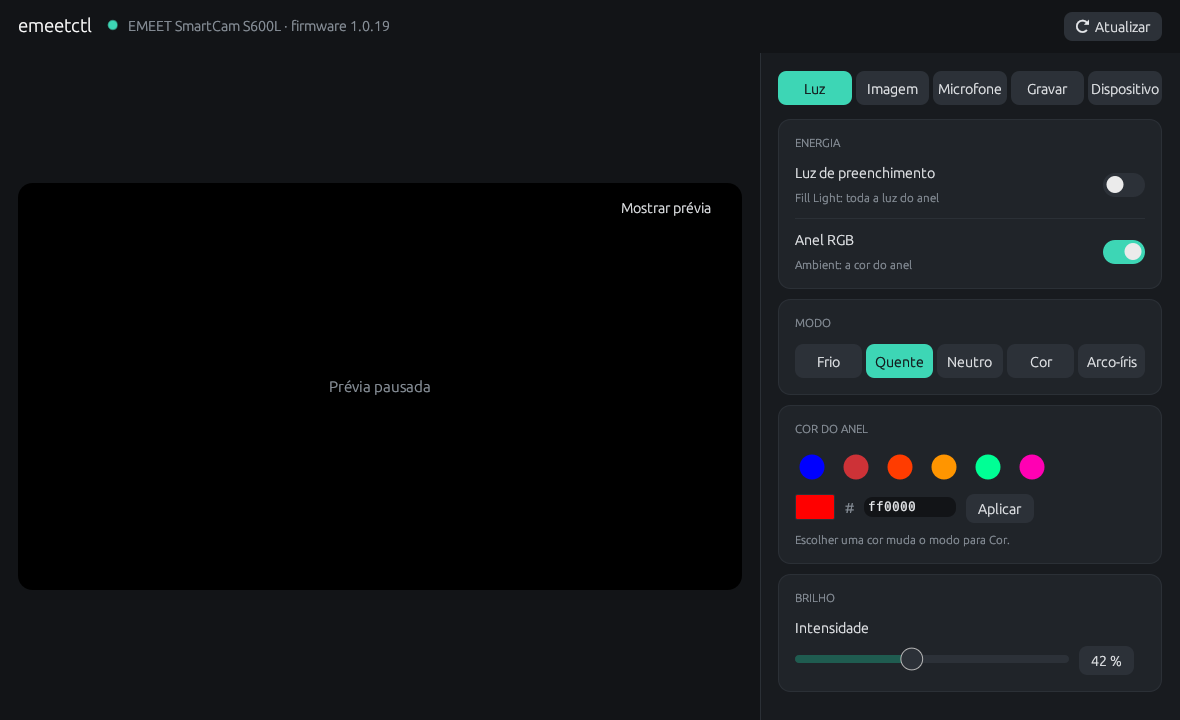
Fill light and RGB ring
- Fill light on/off and RGB ring on/off, independently.
- Brightness control.
- Any RGB color. The vendor app only offers 6 presets.
See what the camera sees
MJPEG 1280×720 at ~60 fps, right next to the controls.
When you pause the preview, the camera is released, so its in-use LED goes off.
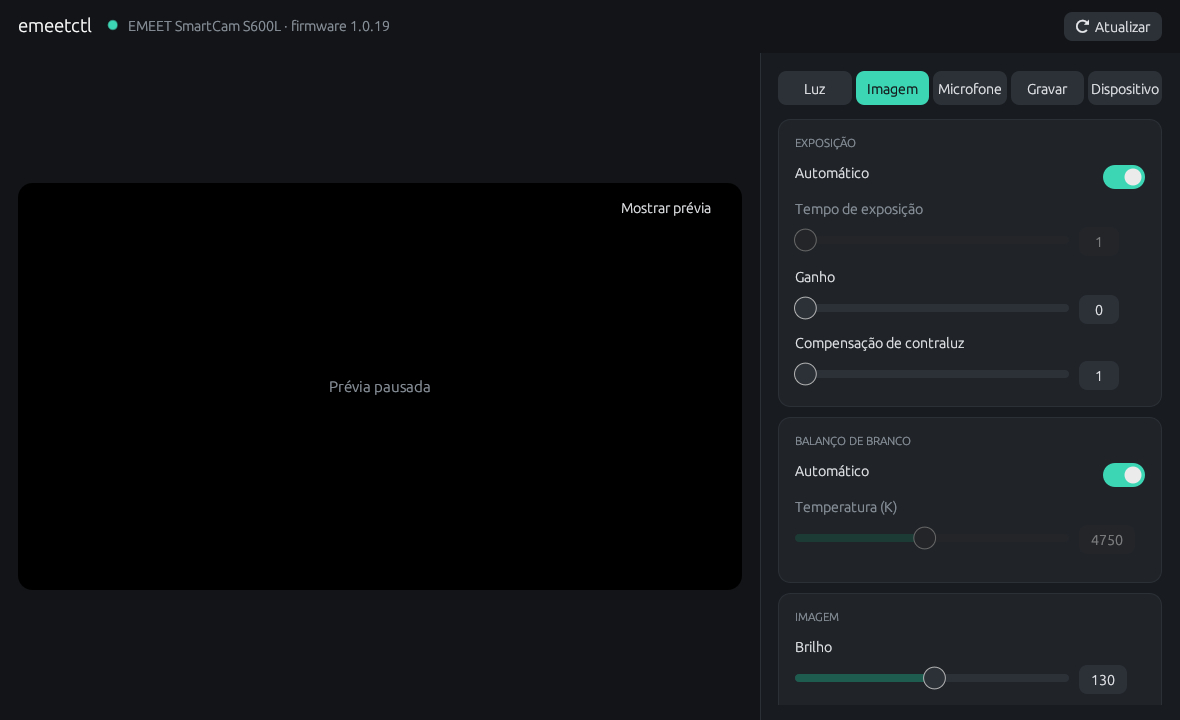
Every image control, in one place
- Brightness
- Contrast
- Saturation
- Hue
- Gamma
- Sharpness
- Gain
- Backlight compensation
- Exposure: auto / manual
- White balance: auto / 2300–7500 K
- Focus: auto / manual
- Zoom 0–400
- Anti-flicker 50 / 60 Hz
- Factory reset
"Auto" switches unlock the matching manual control: turn auto exposure off and the exposure slider comes alive.
The camera mic and any USB mic
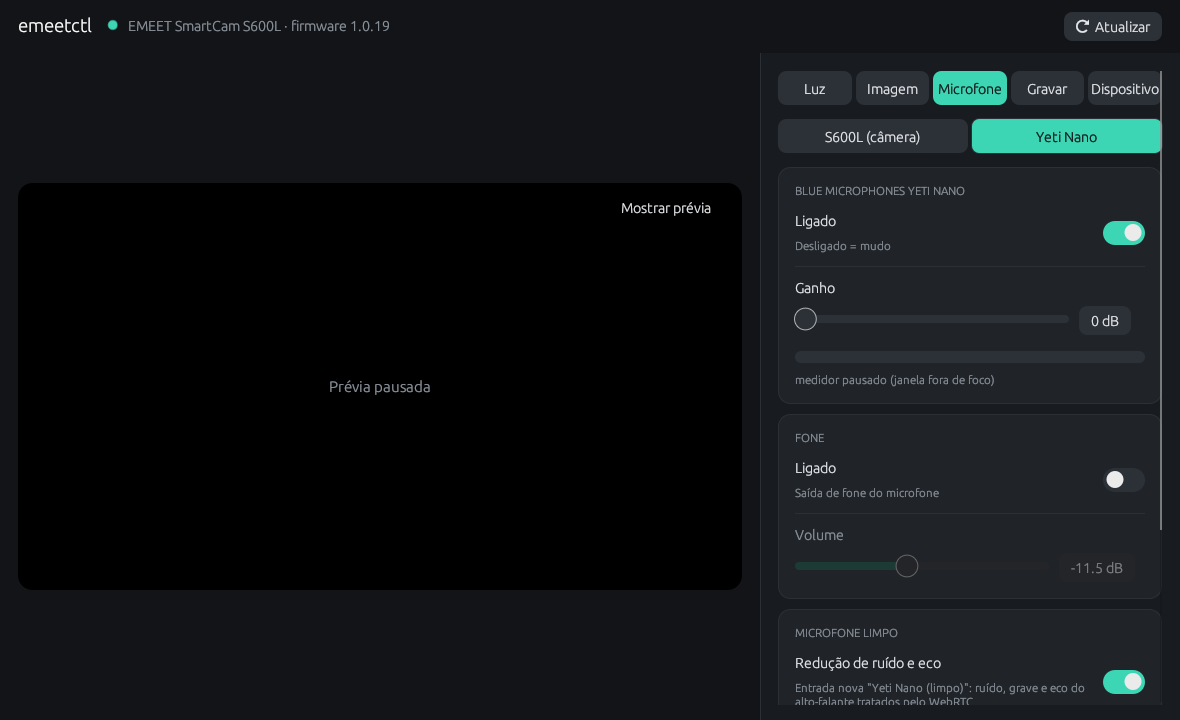
- The S600L mic, a Yeti Nano or any other USB mic: gain, mute and a live level meter.
- Headphone volume for mics with a headphone jack (Yeti Nano).
- Make it the system default input, and see which apps are recording from it.
- Clean microphone: a new input "<mic> (limpo)" with WebRTC noise suppression and speaker echo cancellation. No PipeWire restart.
Record video or audio, in the format you pick
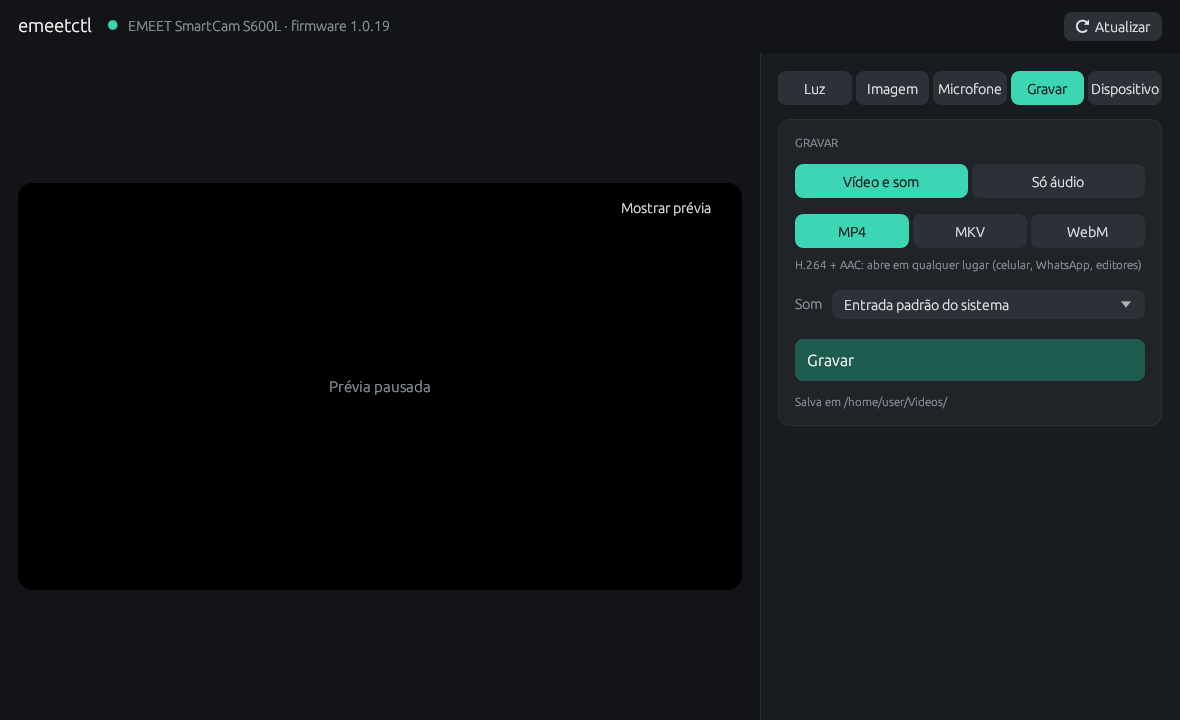
- MP4 (H.264 + AAC)
- MKV (H.264 + Opus)
- WebM (VP9 + Opus)
- WAV
- FLAC
- MP3
- Opus
- M4A
Pick the sound source: the default input, the clean mic, a specific mic, or none. With the virtual camera on, recording uses a free output, so Meet and the preview keep working at the same time.
Through ffmpeg. Stopping, even with Ctrl+C, always closes the file properly.
GUI, CLI and MCP server
emeetctl-gui— the desktop app.emeetctl— the CLI, with--jsonoutput for scripts.emeetctl-mcp— an MCP server, so AI assistants (Claude Code and other MCP clients) can control the light, the image, the microphones and recording.
Only what the vendor app sends
emeetctl only ever sends the light commands observed in the vendor app. Any opcode that was not seen in the capture is refused.
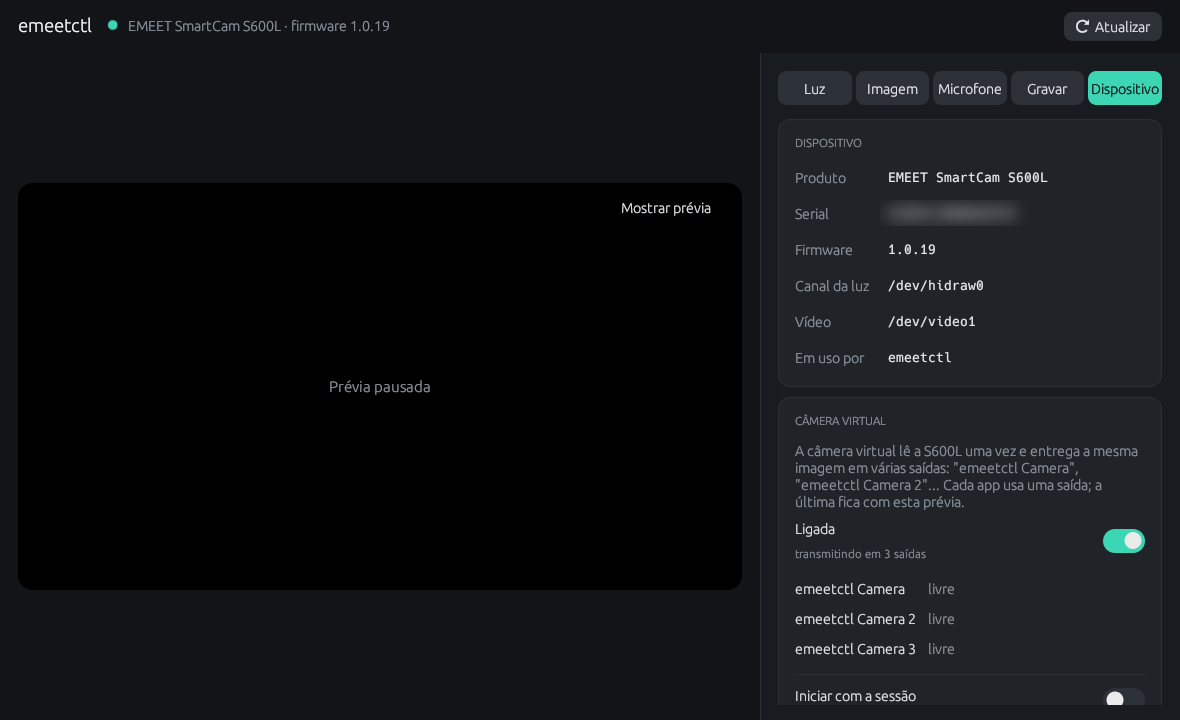
Firmware updates are deliberately unsupported, and the Device tab says so.
Download
Linux, x86_64. Pick the package that matches your distro.
.deb package
Installs the udev rule automatically, so the light works without sudo. File: emeetctl_<version>-1_amd64.deb
$ sudo apt install ./emeetctl_0.1.0-1_amd64.debBinary tarball
emeetctl-0.1.0-x86_64-linux.tar.gz
Needs the udev rule step done manually.
Latest releaseFrom source
$ git clone https://github.com/NicholasWM/emeetctl
$ cd emeetctl
$ cargo install --path crates/emeetctl-gui
$ cargo install --path crates/emeetctl-cli
$ cargo install --path crates/emeetctl-mcp
udev rule (tarball and source installs)
The light is driven through /dev/hidraw. This rule lets your user talk to it without root.
$ sudo cp udev/70-emeetctl.rules /etc/udev/rules.d/
$ sudo udevadm control --reload
$ sudo udevadm trigger --subsystem-match=hidraw --action=change
Coming later
- AppImage
- AUR
- Flatpak
Flatpak is the hard one: its sandbox cannot install the hidraw udev rule the light depends on.
CLI quick tour
Same controls as the GUI, scriptable. Add --json for machine-readable output.
$ emeetctl status
$ emeetctl color 123456
$ emeetctl rainbow
$ emeetctl mode warm
$ emeetctl brightness 30
$ emeetctl off rgb
$ emeetctl image set zoom_absolute 200
$ emeetctl image reset
$ emeetctl --json status
MCP server
Let your AI assistant drive the camera. Register it once with Claude Code, or with any other MCP client.
$ claude mcp add emeetctl -- emeetctl-mcpget_statuslight state and device infoset_light_powerfill light / RGB ring on-offset_light_colorany RGB colorset_light_modelight modeset_light_brightnesslight brightnesslist_image_controlsavailable image controlsset_image_controlset one image controlreset_image_controlsback to factory values
"turn my camera ring red while I'm in a meeting"plain language in, MCP tool calls out
FAQ and camera quirks
Things the hardware does that are worth knowing.
Zoom does nothing
The camera only applies digital zoom in MJPEG below 1080p. Measured frame by frame:
EMEET's own FAQ also says the field of view is fixed at 4K and 1080p. Check which resolution your video app is using.
Permission denied on /dev/hidraw
Install the udev rule. The .deb package does this for you.
Other EMEET models?
Only the S600L (USB 328f:00ef) has been tested. Contributions with USB captures from other models are welcome on GitHub.
How was the protocol found?
By passive USB capture of EMEET Studio 2.0.4 (firmware 1.0.19). No decompilation.
The frame format:
No checksum, with SET/GET pairs for power, color, brightness and mode. Full write-up in the README.